Guide: input modes
MIXER and IPAD
MIXER is for a close microphone or a send from the desk. IPAD is for the microphone that hears the room; there the app removes shaker and congas from what it hears, so it does not follow itself.
TRACK
TRACK reads a file and sends it to both the analysis and the output, AirPods included. LOAD chooses the file; drag the waveform (below, or on the stage) to seek. PLAY pauses. With nothing loaded, PLAY plays the built-in demo song.
MIC level
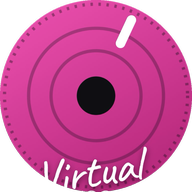
MIC sets how much the analysis hears: raise it until the knob ring enters the fuchsia band. Below it, the analysis gets the tempo wrong; above it, amber and then red, and nothing more is gained.
PROC. OFF
PROC. OFF removes iOS automatic gain and echo cancelling: that is what the analysis wants.
KICK (NO)
The button starts on NO KICK, and that is right for almost everyone: leave it there. Set a channel only if your mixer can send the bass drum alone on its own input: tap the button until it shows KICK 2, KICK 3… the number of the input that carries it (input 1 is always the full mix, so the kick is never there). The app then uses the kick to date the beat more precisely. It lights up only when the kick really lands on the beat; a channel that is not a kick is ignored, so a wrong choice does no harm, but it adds nothing either. Tap past the last input to go back to NO KICK, which switches the whole kick path off.
Clock and buffer
AUTO follows the interface's clock and does not touch it: with the mixer at 48 kHz the app opens at 48 kHz. A fixed value is requested from the interface, and changing it while playing makes it restart. A shorter buffer means less delay and more risk of dropouts; AUTO takes whatever the interface is already giving.
More questions? See Support.
Guida: modalità d'ingresso
MIXER e IPAD
MIXER è per un microfono vicino o una mandata del banco. IPAD è per il microfono che sente la stanza; qui l'app toglie shaker e conga da quello che ascolta, per non seguire se stessa.
BRANO
BRANO legge un file e lo manda sia all'analisi sia all'uscita, anche nelle AirPods. CARICA sceglie il file; l'onda (sotto, o sul palco) si trascina per saltare. PLAY mette in pausa. Con niente caricato, PLAY suona il brano di prova incluso.
Livello MIC
MIC regola quanto sente l'analisi: alzalo finché l'anello del knob entra nella fascia fucsia. Sotto, l'analisi sbaglia il tempo; sopra, ambra e poi rosso, e non guadagna più niente.
ELAB. OFF
ELAB. OFF toglie guadagno automatico ed eco di iOS: è quello che vuole l'analisi.
CASSA (NO)
Il pulsante parte su CASSA NO, ed è la scelta giusta per quasi tutti: lascialo così. Imposta un canale solo se il tuo mixer può mandare la cassa da sola su un ingresso dedicato: tocca il pulsante finché compare CASSA 2, CASSA 3… con il numero dell'ingresso che la porta (l'ingresso 1 è sempre il mix completo, quindi la cassa non è mai lì). L'app usa allora la cassa per datare il battito con più precisione. Si accende solo quando la cassa cade davvero sul battito; un canale che non è una cassa viene ignorato, quindi una scelta sbagliata non fa danni, ma non aggiunge nulla. Oltre l'ultimo ingresso si torna a CASSA NO, che spegne tutto il percorso della cassa.
Clock e buffer
AUTO segue il clock dell'interfaccia e non lo tocca: con il mixer a 48 kHz l'app si apre a 48 kHz. Un valore fisso lo chiede all'interfaccia, e cambiarlo mentre suona la fa ripartire. Un buffer più corto significa meno ritardo e più rischio di buchi; AUTO prende quello che l'interfaccia sta già dando.
Altre domande? Vedi Assistenza.